




Disabling unused Elementor widgets is one of the fastest ways to reduce editor bloat and make Elementor feel smoother in the WordPress admin—especially on large sites with multiple addon packs.
But there’s one rule you should follow:
Disable only after scanning and reviewing
Don’t disable widgets blindly
This guide shows the safest workflow to disable unused widgets without breaking existing pages.
Why disabling widgets can break pages (and how to avoid it)
A page can “break” only if:
- a widget is used on some page, but you disable it
- Elementor can’t render that widget in the editor or frontend
That’s why the best method is:
Scan → Review → Disable in batches → Test key pages
Before you start (recommended)
- If possible, do this on a staging site first.
- If you’re working on live:
- disable in small batches
- test immediately after each batch
- Make a quick backup or at least note your current setup.
Step 1: Run a widget usage scan (don’t skip)
If you haven’t done this yet, start here. First, install the Miracuves Editor Optimizer plugin so you can scan actual widget usage before disabling anything.
If you haven’t done this yet, start here:
- Open the optimizer plugin in WP admin
- Click Scan Widget Usage Now
- Wait for results: Used vs Unused widgets
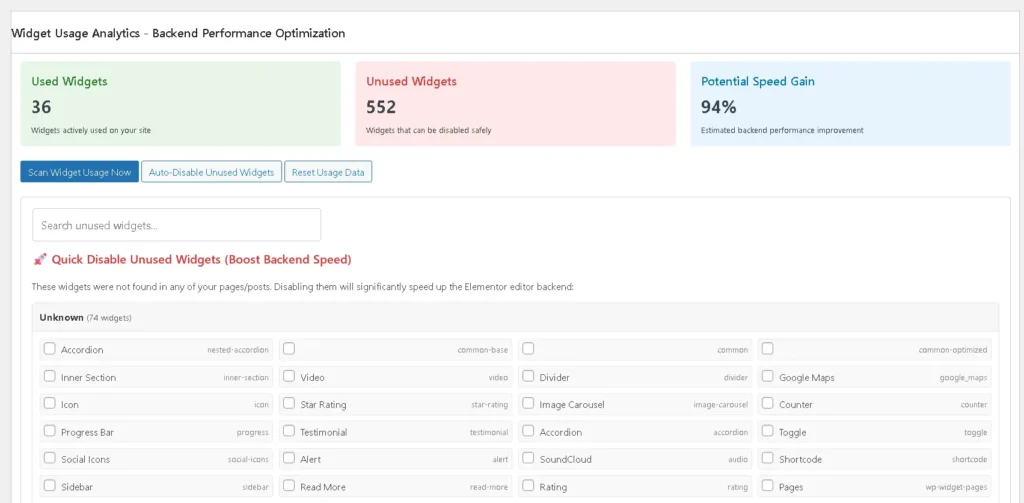
Goal: identify widgets that are unused across the site.
Step 2: Review the addon inventory (where bloat comes from)
Next, check Detected Addons & Widgets so you know which addon packs are adding the most widgets.
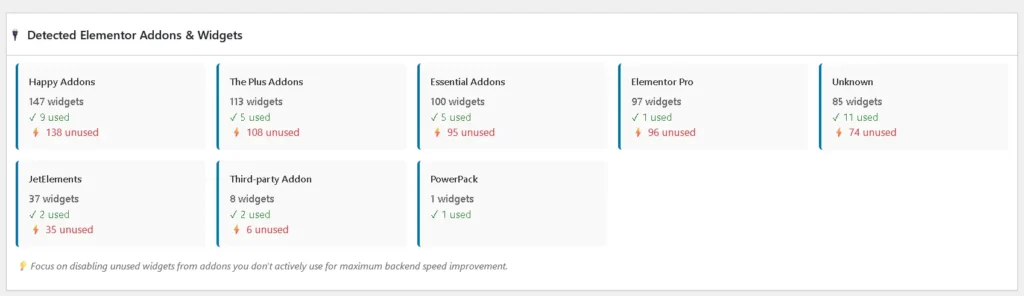
What you’re looking for:
- Addons with 100+ widgets but only a few used
- Multiple addons providing similar widget types
These are the best candidates for cleanup.
Step 3: Decide what to disable first (safest order)
Best order for safety
- Unused widgets from third-party addon packs
- Widgets from addon packs you rarely use
- Leave core Elementor widgets for last (or don’t touch them unless you’re sure)
Why?
- Addon widgets usually create the largest bloat
- Core widgets are more likely to be used somewhere
Step 4: Disable unused widgets in small batches (20–50)
This is the safest approach.
- Open Disable Widgets in the plugin
- Filter/select unused widgets (often highlighted/red)
- Disable 20–50 widgets at a time
- Save/apply changes
- Test key pages (next section)
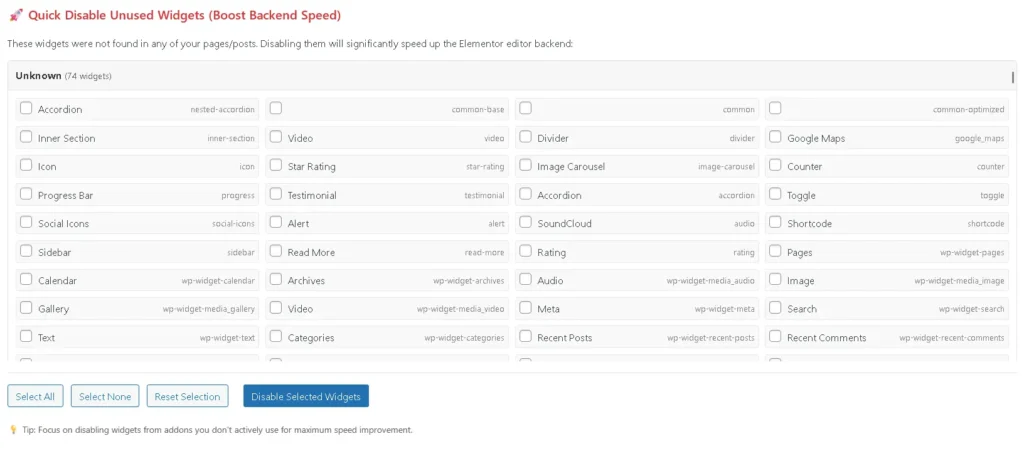
Tip: Don’t try to “finish everything” in one go. The batch method prevents surprises.
If you want to set everything up properly, follow our Step-by-step plugin guide to configure the optimizer safely.
Step 5: Use Auto-Disable (only after review)
If your setup includes an option like Auto-disable unused widgets:
Use it only when:
- you already reviewed the scan results once
- you can test key pages right after

Recommended workflow
- First run: manual batches (safer)
- Second run (after confidence): auto-disable for remaining unused addon widgets
Step 6: Testing checklist (do this after every batch)
After disabling a batch, test these immediately:
Admin editor checks
- Open Elementor editor for:
- Home page
- 1–2 important landing/service pages
- 1 heavy page that used to lag
- Confirm:
- editor loads normally
- the widget panel works
- the page structure appears correctly
Frontend checks
- Open the same pages on the frontend
- Check:
- key sections render correctly
- no missing blocks or broken layouts
If everything looks fine, disable the next batch.
Disabling unused widgets is one of the fastest ways to reduce editor bloat. If you’re looking for a complete Elementor editor performance optimizer strategy, this guide walks you through the safest workflow.
Step 7: If something disappears (recovery steps)
If a page loses an element or a widget doesn’t render:
- Go back to the plugin’s widget list
- Re-enable the specific widget
- Re-test the affected page
- Continue with smaller batches
That’s it. No complex rollback needed most of the time.
Recommended “batch strategy” (fast + safe)
If your scan shows hundreds of unused widgets, use this approach:
Batch 1 (quick win)
- Disable unused widgets from the largest addon pack first
(Example: the addon contributing 100–200 widgets)
Batch 2
- Disable unused widgets from the second largest addon pack
Batch 3
- Disable unused widgets from smaller addon packs
This usually delivers the biggest improvement early.
Best practices (for teams & agencies)
- Do the first cleanup on staging when possible
- Disable addon widgets first
- Keep a simple “test pages” list for every project
- Re-scan monthly or after adding new addons
- Avoid installing multiple addon packs unless you really need them
FAQ
Can I re-enable widgets anytime?
Yes. If a widget is needed later, re-enable it and it will be available again.
Do I need to disable widgets on every page separately?
No. Widget enabling/disabling is global. That’s why scanning site-wide usage is important.
What’s the best batch size?
Start with 20–50. If your site is stable after a few batches, you can increase slightly.
Should I disable core Elementor widgets?
Only if you are 100% sure they are not used anywhere. Most sites are safer focusing on addon widgets first.
Next step: Fix heavy pages and editor crashes
If your biggest issue is heavy pages not opening, freezing, or memory-related errors, follow the next guide:
Read next: Elementor Heavy Pages Not Opening? Fix Lag, Freezes & Memory Issues (Admin Editor)
Final thoughts
Disabling unused Elementor widgets is one of the cleanest ways to speed up Elementor editing—as long as you do it safely.
Use this workflow:
Scan → Review → Disable in batches → Test → Repeat
Free open-source repo: https://github.com/miracuves/MCX-Elementor-Editor-Optimizer
If it helps you, consider starring the repo and sharing feedback.