

Key Takeaways
What You’ll Learn
- Elementor editor can slow down because of heavy widgets, plugins, scripts, and server limits.
- Disabling unused Elementor widgets can improve backend editing speed.
- A lightweight plugin can help reduce editor load without changing the website design.
- Better hosting, updated plugins, and clean assets also support smoother editing.
- Long-term speed depends on regular cleanup, smart optimization, and fewer unnecessary features.
Stats That Matter
- Elementor loads many editor controls, widgets, and scripts inside the WordPress backend.
- Unused widgets can increase editor load even when they are not used on the page.
- Plugin conflicts, low PHP memory, and slow hosting can make editing feel heavier.
- Optimizing widgets and backend assets can make the editor faster and easier to use.
- Regular updates and cleanup help keep Elementor performance stable.
Real Insights
- Elementor speed improves when unnecessary editor load is reduced.
- Disabling unused widgets is safer than removing important design elements.
- Backend speed matters because slow editing reduces productivity.
- A focused optimization plugin can help non-technical users manage performance easily.
- The strongest Elementor setup combines clean plugins, optimized widgets, good hosting, and regular maintenance.
If your Elementor editor takes too long to load, feels laggy on heavy pages, or struggles on lower-spec computers, you’re not alone.
On many WordPress sites, Elementor is used alongside multiple addon packs. The problem is that when you launch the editor, it often loads hundreds of widgets and addon assets—even if you never use most of them. That extra load can make the editor slow, unstable, and frustrating to work with.
To solve this, we’re sharing a free open-source Elementor editor optimizer:
MCX Elementor Editor Optimizer (Free + Open Source)
GitHub: https://github.com/miracuves/MCX-Elementor-Editor-Optimizer
What this plugin helps you do
This plugin focuses on making the Elementor editor experience smoother by helping you:
- Scan used vs unused widgets across your site
- Disable unused widgets (manual or bulk/auto)
- Reduce editor load by limiting unnecessary add-ons (where applicable)
- Use editor-only performance toggles, including memory-related stability settings
- Keep your workflow clean: build with full access, then edit in a lightweight mode
Note: The purpose is to reduce editor-side bloat so large pages become easier to open and edit.
The real issue: widget bloat
Most websites use only a small subset of available widgets—but the editor still loads everything.
A typical scan can reveal numbers like:
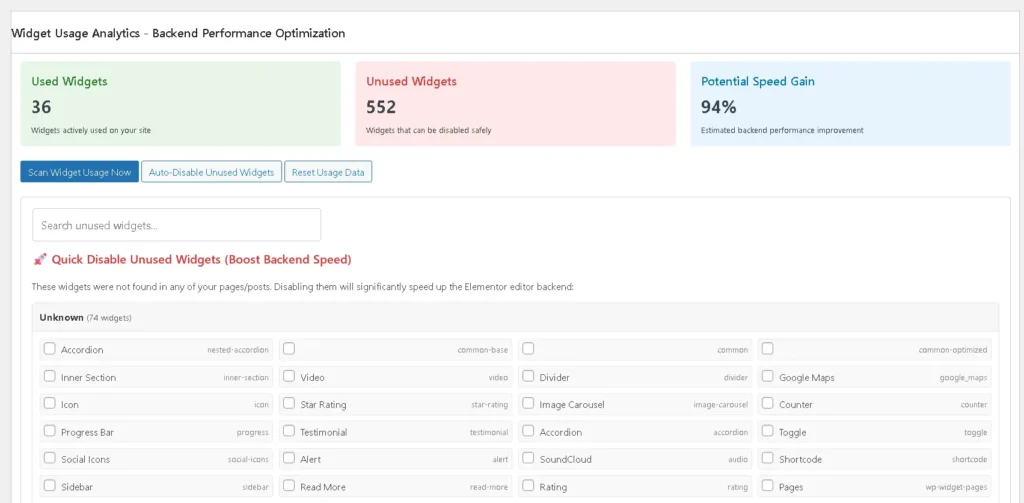
- Used Widgets: 36
- Unused Widgets: 552
- Potential Speed Gain: 94% (estimate)
Key features (with proof screenshots)
1) Widget Usage Analytics
Run a scan to identify:
- Widgets you actually use
- Widgets that are unused (safe candidates to disable after review)
2) Bulk Disable / Auto-Disable Unused Widgets
Once you know what’s unused, you can:
- Disable selected widgets
- Use bulk actions (including auto-disable where available)
This reduces the number of widgets Elementor loads during editing.
3) Addons & Widgets Inventory (by plugin)
The plugin shows widgets grouped by addon packs so you can quickly see:
- How many widgets each addon contributes
- How many of those widgets are actually used
4) Editor Firewall (editor-session optimization)
Some setups allow you to reduce editor load by limiting unnecessary plugins only during the editor session. This can help reduce overhead when working on large pages.
5) Editor stability settings (including memory-related options)
For heavy pages, editor stability can be improved with editor-focused settings such as memory and optimization toggles.
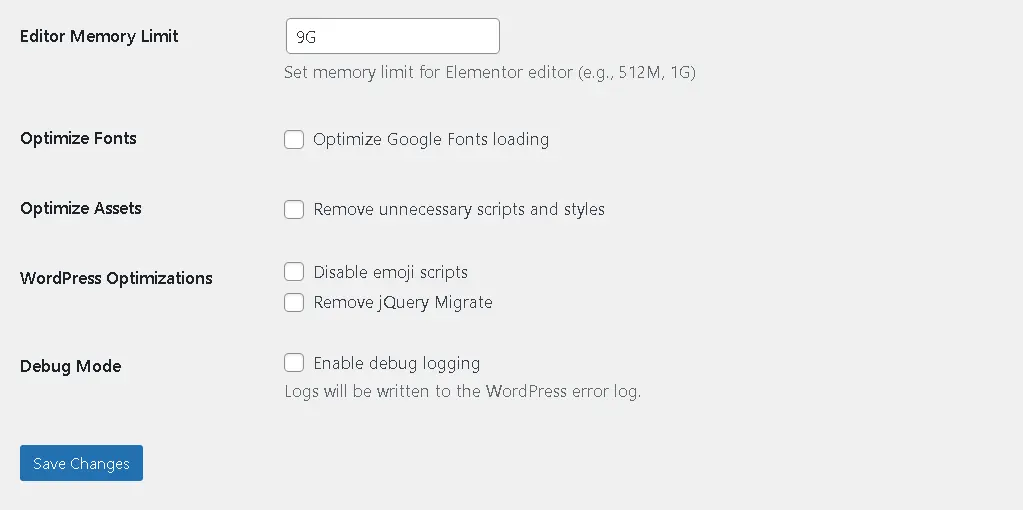
6) Performance information summary
A quick overview of widget usage and expected improvement indicators (based on your scan).
How to use it (quick steps)
- Install and activate the plugin
- Open the plugin settings (optional configuration)
- Run Widget Usage Scan
- Disable unused widgets (start with add-on widgets, keep essentials)
- Open a heavy page in Elementor and compare the editing experience
Who this is for?
- Agencies and freelancers working daily in Elementor
- Websites using multiple Elementor addon packs
- Sites with large pages containing many sections/widgets
- Users editing on lower-spec laptops/PCs
Best practice (recommended workflow)
- Use full access when building new layouts
- Once a page is stable, switch to a lighter editing workflow by disabling unused widgets
- Re-scan periodically when you add new pages or new widget types
Download / Contribute
If this helps you, consider:
- Starring the repo on GitHub
- Reporting issues
- Suggesting improvements via GitHub Issues / PRs
Need expert help optimizing WordPress + Elementor performance?
Contact Miracuves for advanced performance and stability optimization.
FAQs
Will this break my design?
Disabling widgets can affect pages if a disabled widget is used somewhere. That’s why the plugin’s workflow starts with scanning, then reviewing unused widgets before disabling them.
Is it free?
Yes. It’s open source and free to use.
Where do I download it?
GitHub repository: https://github.com/miracuves/MCX-Elementor-Editor-Optimizer
Explore More Elementor Optimization Guides
👉 Step-by-step install & usage guide
👉 Why Elementor editor gets slow
Miracuves is an independent software development company. We are not affiliated with, connected to, sponsored by, or endorsed by any company or product named in this article.
Terms such as “X Clone” are used descriptively. It is how the software industry refers to building a platform with functionality comparable to a known service, and how clients search for it.
The entire design and codebase of our products is built by our own team. Our products contain no code, design, graphics, or content originating from any third-party website or applications.
All third-party names and marks referenced in this article are the property of their respective owners, referenced solely to identify the services discussed.