




If an Elementor Heavy pages is very large (many sections, containers, and widgets), it can become difficult to open in the WordPress admin editor. Common issues include:
- Elementor editor loads forever after clicking Edit with Elementor
- The editor freezes or becomes unresponsive on heavy pages
- White screen / blank editor / “something went wrong”
- Browser tab crashes (especially on low-spec machines)
- Editing feels extremely laggy (slow scroll, delayed clicks)
This guide gives you a practical checklist to fix heavy Elementor pages and make admin editing smoother—without guessing.
For a complete Elementor editor slow fix, check our main guide with all the most effective solutions.
Why heavy Elementor pages fail in the editor
Heavy pages typically break or lag because of combined load:
1) Too many sections/widgets on one page
Every section/widget adds more DOM complexity and more work for Elementor to render and manage in the editor.
2) Widget bloat from addon packs
Multiple Elementor addon packs can add hundreds of widgets and extra editor-side scripts—even if your page uses only a few of them.
This often becomes the biggest hidden cause of slow editor loading.
3) Memory and resource constraints
Heavy pages require more resources:
- Server-side memory limits (PHP memory)
- Browser memory and CPU
- Low-spec laptops/PCs struggle even more
4) Too many plugins loading in admin
Even plugins unrelated to Elementor can add admin overhead and slow down the editor environment.
Fix checklist (priority order)
Follow these steps in order. Don’t try everything at once.
1) Scan used vs unused widgets (the fastest win)
Before you change anything, identify how much widget bloat you have. If you have not installed it yet, start with the Miracuves Editor Optimizer plugin so you can review actual widget usage before making changes.
- Open your optimizer plugin
- Click Scan Widget Usage Now
- Review Used vs Unused widgets
To understand what’s slowing things down, first Scan used vs unused widgets and review what’s actually needed.
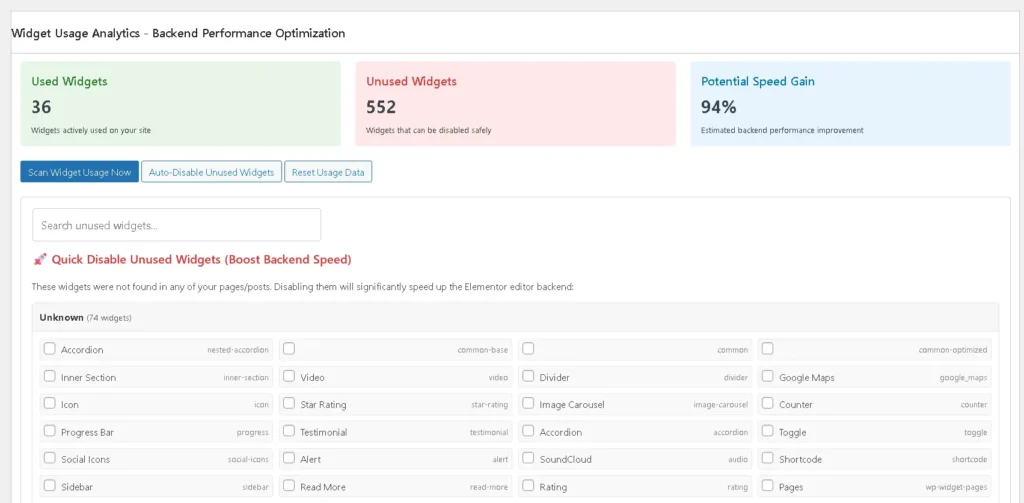
What this tells you:
If you have hundreds of unused widgets, your editor is carrying unnecessary weight.
Before using the plugin, follow the Install & configure guide to set everything up correctly.
2) Disable unused addon widgets (in small batches)
Start with unused widgets from third-party addon packs (not core Elementor widgets).
Safe workflow:
- Disable 20–50 unused widgets at a time
- Re-test the heavy page in Elementor editor
- Repeat
To improve performance, Disable unused widgets safely and remove unnecessary widget bloat from the Elementor editor.
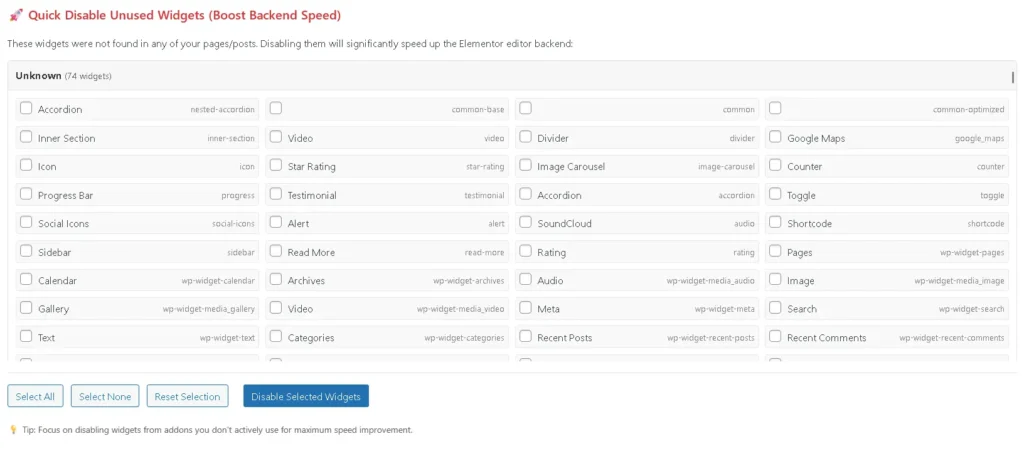
Why this helps:
It reduces the number of widgets and scripts Elementor must load inside the editor.
3) Review “Detected Addons & Widgets” (find the biggest bloat source)
Go to the addon inventory view and check which addon pack contributes the most widgets.
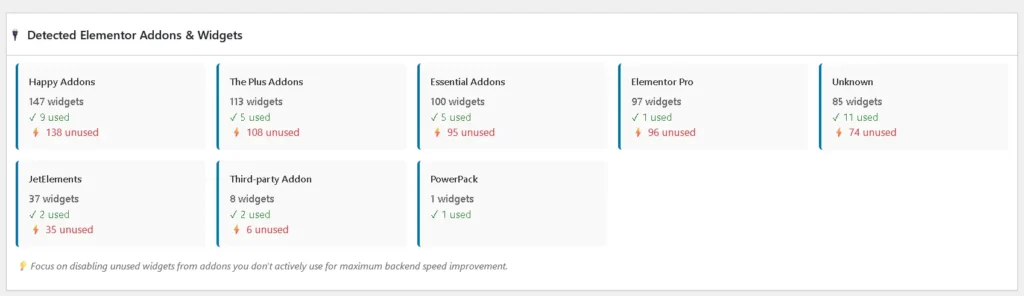
What to look for:
- Addon packs with 100–200 widgets, but very few actually used
- Multiple addon packs providing similar widget types
Action:
If one addon pack is barely used, consider removing it (or at minimum, disabling its unused widgets).
4) Apply editor stability settings (memory-related options)
If your heavy page still won’t open, this is often a stability/memory issue.
In your plugin settings (or your environment), look for editor-focused memory options and increase them responsibly.
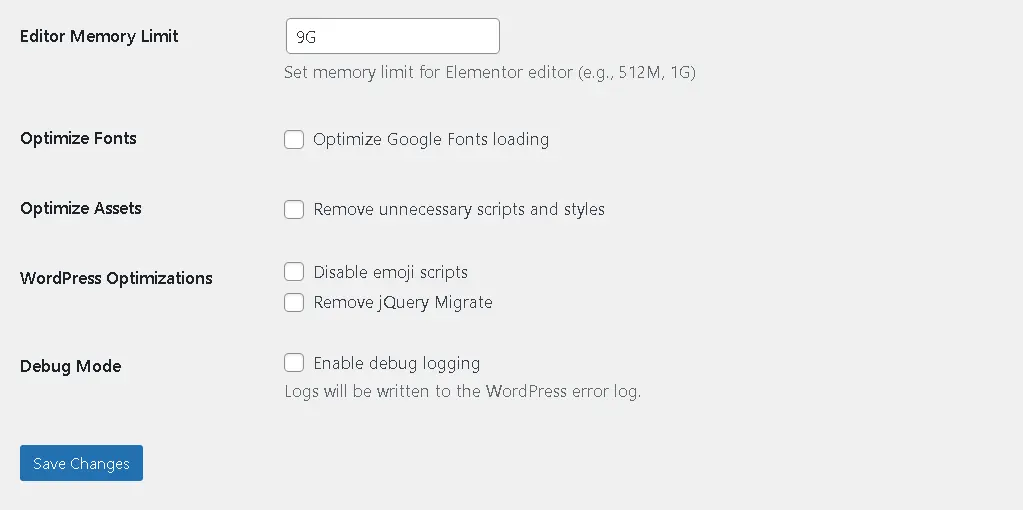
When to do this:
- White screen / blank editor
- “The preview could not be loaded”
- Editor crashes on large pages
- Server memory errors
Tip:
Increase memory step-by-step and re-test. Avoid random extreme changes.
5) Use a “Build” vs “Edit” workflow (reduce editor load during routine updates)
A clean workflow helps teams avoid repeated pain:
Build mode (full environment)
Use when you are:
- designing new layouts
- testing new widgets
- creating fresh sections
Edit mode (optimized environment)
Use when you are:
- changing text/images
- making quick updates
- editing stable heavy pages
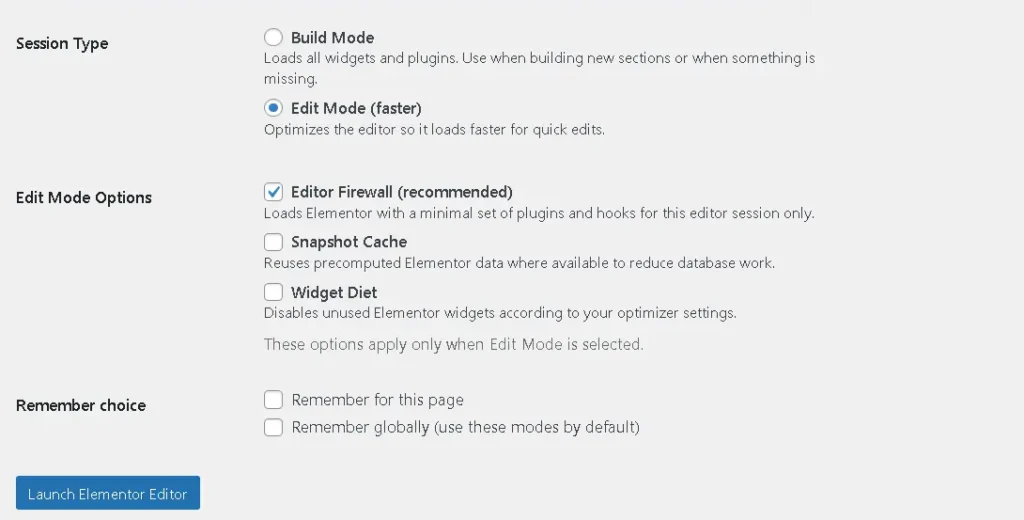
This approach prevents loading everything when you don’t need it.
6) Reduce page complexity (structural fixes for very large pages)
If your page is extremely long (many sections), even a clean widget setup may struggle.
Try these structural improvements:
- Split the page into reusable templates
- Reduce unnecessary nesting (avoid deep container-in-container chains)
- Replace repeated sections with templates
- Keep global sections lean
Result:
Editor has less content to render at once → smoother editing.
7) Basic cleanup checks (often overlooked)
Do these quick checks after the above steps:
- Update Elementor + Elementor Pro + addons
- Remove unused addon packs/plugins
- Temporarily disable heavy admin plugins (testing)
- Try a different browser session (clear cache / incognito)
- Test editor performance on a stronger machine (to isolate PC limitations)
What to test after every change (must-do)
After you disable widgets or adjust stability settings, test:
- Open the heavy page in Elementor editor
- Open Home page and 2 key pages in editor
- Verify frontend rendering on the same pages
- Ensure your commonly used widgets still appear in the panel
If something is missing:
- re-enable the specific widget
- re-test
- continue in smaller steps
FAQ
Why does Elementor show a blank or white screen on heavy pages?
Usually because the page is too heavy for the current memory/resources, or because the editor environment is overloaded with addons/widgets.
What’s a safe editor memory setting?
It depends on your hosting environment. Increase gradually, re-test, and keep changes limited to what you actually need.
Should I split one giant page into sections/templates?
Yes—if it’s extremely long. Templates make the editor lighter and also improve workflow for teams.
Will disabling unused widgets improve heavy page editing?
In most cases, yes—because the editor loads less bloat, especially from addon packs.
Final thoughts
Heavy Elementor pages become painful when page complexity + addon widget bloat + memory limits stack up together.
Start with the highest-impact workflow:
- Scan used vs unused widgets
- Disable unused addon widgets in batches
- Apply editor stability settings only if needed
- Use an optimized edit workflow for routine updates
Free open-source repo: https://github.com/miracuves/MCX-Elementor-Editor-Optimizer
If it helps you, please the repo and share feedback.