



This guide walks you through setting up MCX Elementor Editor Optimizer from start to finish—installing the plugin, running a widget usage scan to find used vs unused Elementor widgets, disabling unused widgets without breaking layouts, and configuring memory and performance optimizations for a faster editor experience. You can also start with Main overview and benefits for a quick snapshot of what you’ll achieve.
Repo: https://github.com/miracuves/MCX-Elementor-Editor-Optimizer
Before you start (recommended)
- Take a quick backup (or at least note your current setup).
- If you’re working on a live site, test changes on a staging site when possible.
- The safest approach is: Scan → Review → Disable in small batches → Test a few key pages.
1) Install the plugin
Option A: Install via ZIP (WordPress Admin)
- Download the plugin ZIP from GitHub (Code → Download ZIP) or your release file.
- Go to WordPress Admin → Plugins → Add New → Upload Plugin
- Upload ZIP → Install Now → Activate
Option B: Install manually (FTP/File Manager)
- Extract the plugin folder.
- Upload it to: wp-content/plugins/
- Go to Plugins and Activate it.
2) Open plugin settings
Go to: WordPress Admin → MCX Elementor Editor Optimizer (or the plugin menu item)
Here you’ll typically see sections such as:
- Widget usage scan
- Widget disable controls
- Addon inventory
- Editor-focused performance options
- (Optional) Editor Firewall settings
3) Run a Widget Usage Scan (most important step)
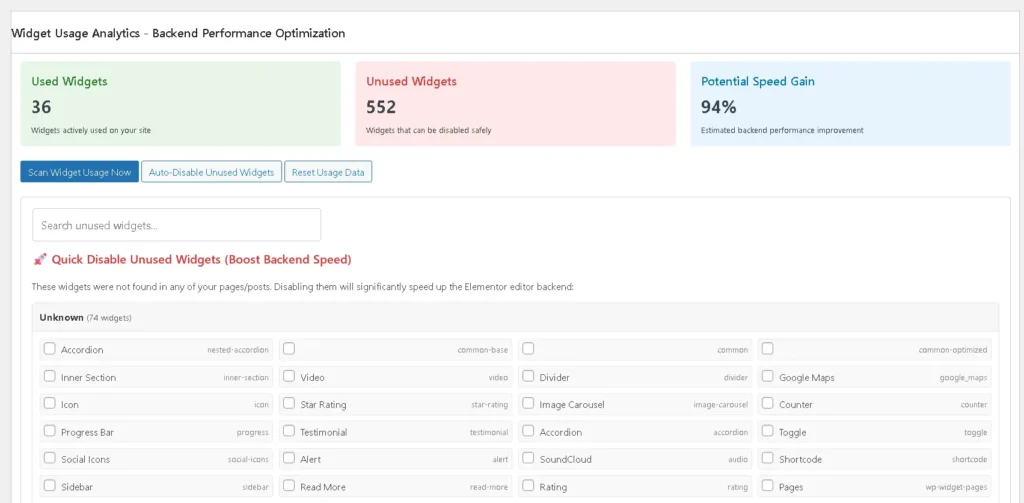
- Click Scan Widget Usage Now
- Wait for the scan to complete
- Review the results:
- Used Widgets (keep enabled)
- Unused Widgets (candidates to disable)
- Estimated improvement indicators
Tip: If your site has many pages, the scan may take longer. That’s normal.
4) Review “Detected Addons & Widgets”
This section helps you understand where the widget bloat is coming from:
- Addon packs installed (e.g., Happy Addons, Essential Addons, etc.)
- Total widgets per addon
- How many are actually used
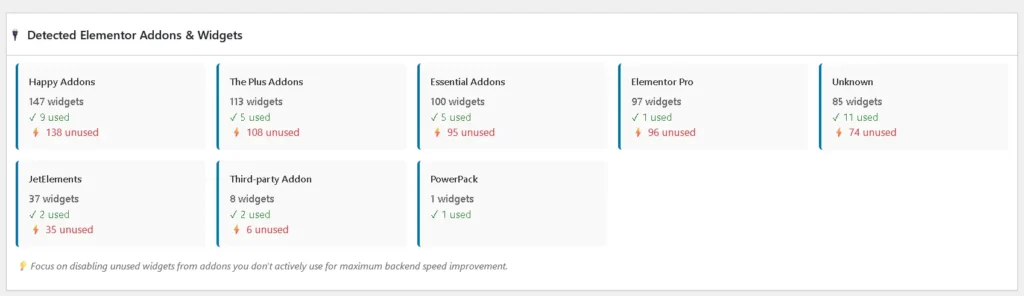
This makes it easy to decide:
- Which addon packs are worth keeping
- Which addon widgets can be disabled first
5) Disable unused widgets (safe method)
Recommended approach
The safest way to reduce Elementor bloat is to start with unused third-party addon widgets first (instead of core Elementor widgets). This lowers the risk of breaking layouts while still cutting down unnecessary CSS/JS. This is exactly what we’ll do in the Disable unused widgets safely step.
Steps:
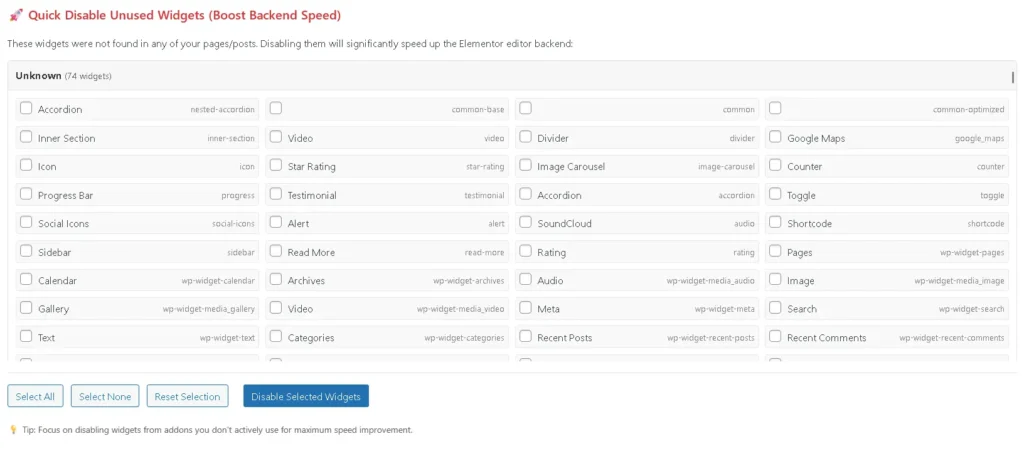
- Open the Disable Widgets section
- Select widgets marked as unused (often highlighted/red)
- Disable in small batches (e.g., 20–50 at a time)
- Re-open Elementor on:
- Home page
- A heavy page (many sections)
- One or two key landing pages
Auto-Disable (if available)
If the plugin provides an Auto-disable unused widgets option:
- Use it only after you review the scan once
- Still test 2–3 key pages immediately after

6) Use “Edit Mode” vs “Build Mode” (recommended workflow)
A practical workflow for teams:
Build Mode (Full Access)
Use when you are:
- Creating new layouts
- Trying new widgets
- Building new sections
Edit Mode (Optimized)
Use when you are:
- Doing quick text/image edits
- Editing stable pages
- Working on heavy pages that lag
This helps keep Elementor lighter during routine updates.
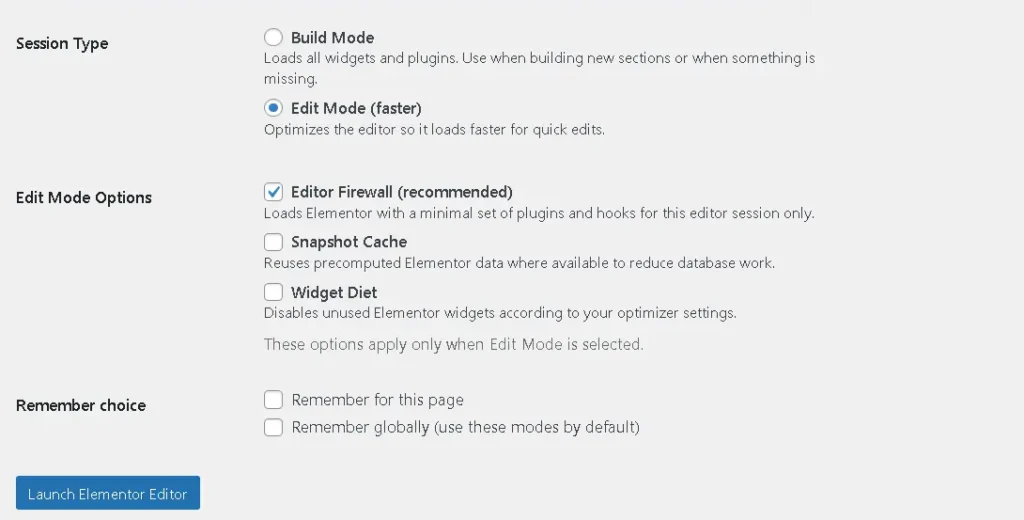
7) Configure editor performance options (stability + speed)
In Settings you may find options such as:
Editor Memory Limit (recommended for heavy pages)
If Elementor editor crashes, shows white screen, or fails on large pages:
- Increase Editor Memory Limit (example: 512MB / 1024MB depending on server)
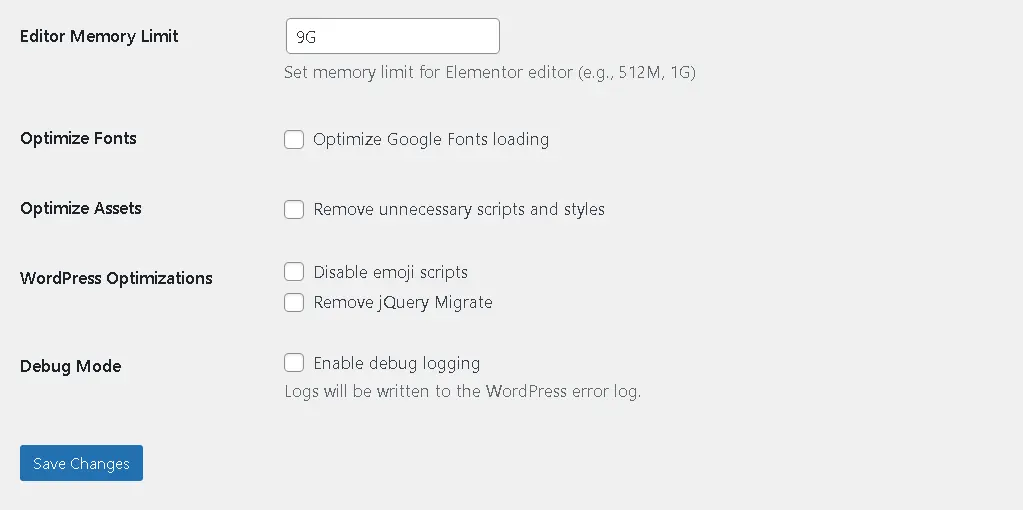
Other editor optimization toggles
Depending on your setup, you may see optional toggles related to:
- editor resource loading
- fonts/assets optimizations
- general admin-side performance options
Enable only what you need and test quickly after changes.
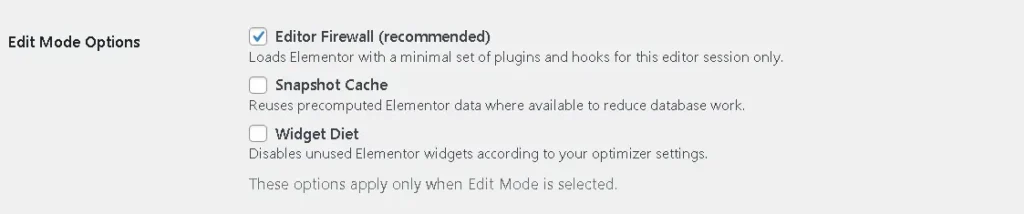
8) Editor Firewall (advanced, optional)
If you use the Editor Firewall feature:
- The idea is to prevent unnecessary plugins from loading only during the Elementor editor session
- This can reduce overhead from heavy plugins that are not needed while editing
Recommended usage:
- Never block Elementor / Elementor Pro
- Start with non-essential plugins (analytics UI, dashboard widgets, etc.)
- Test editor launch after enabling firewall rules
9) Troubleshooting
Elementor editor still slow?
- Run scan again
- Disable a few more unused addon widgets
- Check if a specific addon pack contributes hundreds of widgets
- Try editor-only memory limit if the page is extremely heavy
A widget disappeared in the editor
- It may have been disabled but used somewhere
- Re-enable that widget and re-test
Scan results seem incomplete
- Ensure your important pages were included
- Run the scan again after clearing caches (if any)
10) Best Practices (for agencies & teams)
- Scan once when you inherit a site
- Disable unused addon widgets in small batches
- Use Edit Mode for routine edits
- Re-scan monthly (or after installing new addons)
Download / Contribute
GitHub: https://github.com/miracuves/MCX-Elementor-Editor-Optimizer
If you find an issue or want a new feature, please open a GitHub Issue or submit a PR.
Next Read : Fix heavy pages and crashes