




Most Elementor sites become slow in the WordPress admin editor for one simple reason: the editor loads far more widgets than the site actually uses—especially when multiple addon packs are installed.
Instead of guessing what to disable, the smartest approach is to scan your site and get a clear report of:
- Which Elementor widgets are used
- Which widgets are unused (safe candidates to disable after review)
- Which addon packs contribute the most widget bloat
This guide shows you the exact workflow to scan widget usage and interpret the results.
Why scanning matters (don’t guess)
If you disable widgets blindly, you risk breaking a page where a widget is actually in use. A usage scan removes the guesswork by giving you real data—making it the quickest Elementor Editor Slow Fix when the editor feels heavy or slow.
A usage scan solves this by giving you real data—so you can:
- remove editor bloat safely
- keep only what you use
- make Elementor editing noticeably smoother on heavy pages
What you need before scanning
Before you run the scan, do these quick checks:
- Backup / staging (recommended): If you have staging, test there first.
- List your key pages: Home page, service pages, key landing pages, and your heaviest Elementor page.
- Update Elementor + addons: A clean environment gives cleaner results.
Step-by-step: Run a widget usage scan
Step 1: Install and activate the optimizer plugin
If you haven’t installed it yet, start with the Miracuves Editor Optimizer plugin before proceeding with the scan steps.
Repo: https://github.com/miracuves/MCX-Elementor-Editor-Optimizer
Step 2: Open the plugin dashboard
Go to your WordPress admin and open the plugin page:
WP Admin → MCX Elementor Editor Optimizer (menu name may vary slightly)
Step 3: Start the scan
Look for the option like:
“Scan Widget Usage Now”
Click it and let the scan complete.
Tip: On large websites the scan can take longer. That’s normal—don’t interrupt it.
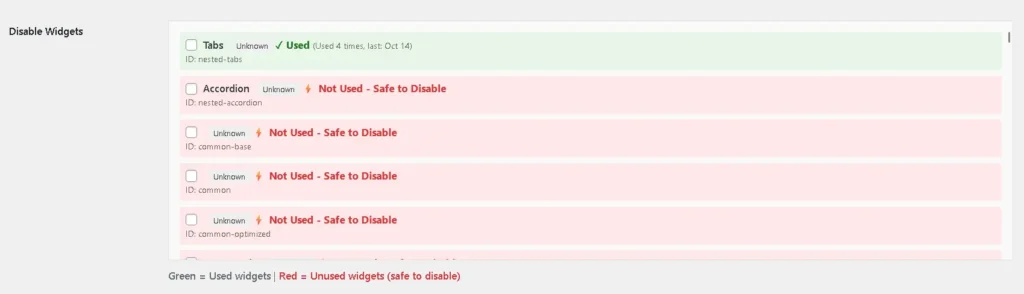
Step 4: Read the results (Used vs Unused)
After the scan, you’ll see a summary like:
- Used Widgets: widgets detected across your site
- Unused Widgets: widgets not found anywhere (candidates to disable)
- Potential Speed Gain: an estimated indicator (not a guaranteed number)
How to interpret it
- If Unused widgets are in the hundreds, you likely have multiple addon packs adding widget bloat.
- Even if hosting is good, the editor can still slow down because the panel is too heavy.
Step-by-step: Understand your addon inventory (where the bloat comes from)
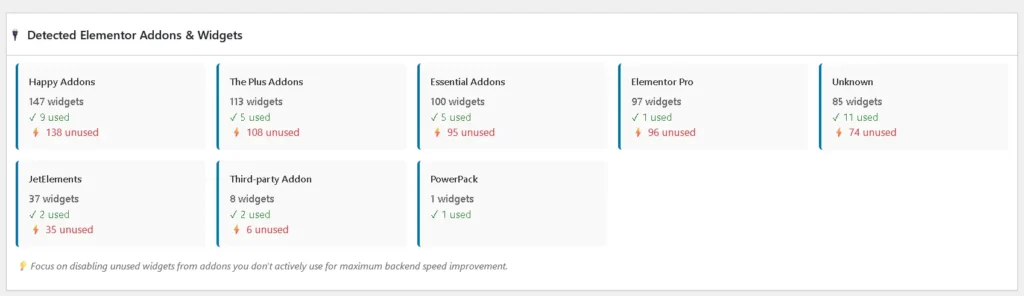
Step 5: Open “Detected Addons & Widgets”
This section is extremely useful because it groups widgets by addon/plugin.
It typically shows:
- installed addon packs
- how many widgets each addon provides
- how many of those are used vs unused
What to look for
- Addons with 100+ widgets but only a few used
- Multiple packs providing similar widget categories (buttons, grids, forms, sliders)
This is a strong signal that your editor is carrying unnecessary load.
What to disable first (safest order)
After you scan, follow this recommended order:
1) Disable unused addon widgets first
Start with widgets that come from third-party addon packs.
Why?
- Addon packs often contribute the largest widget bloat
- Core Elementor widgets are more commonly used
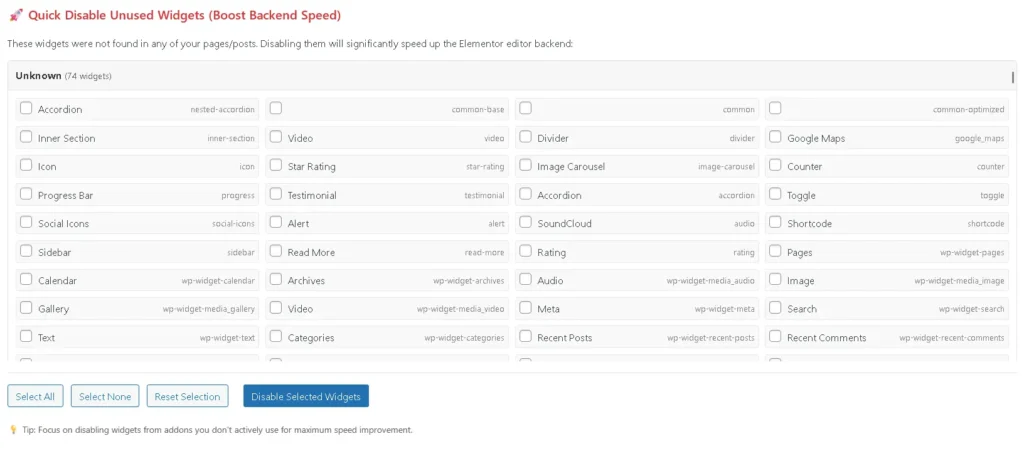
2) Disable in small batches (20–50 at a time)
Do not disable everything at once.
Batch workflow:
- Disable 20–50 unused widgets
- Test your key pages
- If everything is fine, repeat
This protects you from surprises.
3) Use Auto-disable only after review (optional)
If your tool provides an option like Auto-disable unused widgets, use it only when:
- you’ve reviewed the scan results once
- you can quickly test important pages right after

Testing checklist (do this after each batch)
After disabling widgets, test:
- Home page
- 2–3 important service/landing pages
- 1 heavy page that used to lag in Elementor editor
- Open Elementor editor and confirm widgets still appear where needed
If something is missing:
- Re-enable the specific widget
- Re-test
- Continue in smaller batches
Common scan issues (and what to do)
“Scan results look incomplete”
- Make sure your important pages were included and accessible
- Run the scan again after clearing caches (if you use caching)
- If the site is very large, consider scanning in multiple phases
“Scan takes too long”
- Large sites naturally take longer
- Avoid running scans during peak traffic hours
- Ensure server resources are stable while scanning
“I installed a new addon pack”
Any time you add a new addon pack or start using new widget types:
- run the scan again
- re-check used vs unused totals
Next step: Disable unused widgets safely
Now that you have clean scan data, the next step is to disable unused widgets safely without breaking pages.
Final thoughts
Scanning used vs unused widgets is the fastest way to understand why Elementor editor is slow—and what to fix safely.
Once you reduce unused widget bloat, Elementor admin editing becomes noticeably smoother, especially on heavy pages.
Free open-source repo: https://github.com/miracuves/MCX-Elementor-Editor-Optimizer
FAQs
How long does a widget usage scan take?
It depends on your site size and hosting. Small sites can finish quickly; larger sites may take longer.
Will scanning affect my live website?
Scanning typically runs in the admin context. Still, it’s best to scan during low-traffic times on very large sites.
How often should I scan?
Scan when you:
install new addon packs
launch new templates/pages at scale
change your Elementor workflow significantly
Otherwise, monthly scanning is a good practice.