


This guide walks you through setting up MCX Elementor Editor Optimizer from start to finish—installing the plugin, running a widget usage scan to find used vs unused Elementor widgets, disabling unused widgets without breaking layouts, and configuring memory and performance optimizations for a faster editor experience. You can also start with Main overview and benefits for a quick snapshot of what you’ll achieve.
Repo: https://github.com/miracuves/MCX-Elementor-Editor-Optimizer
Before you start (recommended)
- Take a quick backup (or at least note your current setup).
- If you’re working on a live site, test changes on a staging site when possible.
- The safest approach is: Scan → Review → Disable in small batches → Test a few key pages.
- Before starting the setup, download the Miracuves Editor Optimizer plugin so you can follow the installation steps smoothly.
1) Install the plugin
Option A: Install via ZIP (WordPress Admin)
- Download the plugin ZIP from GitHub (Code → Download ZIP) or your release file.
- Go to WordPress Admin → Plugins → Add New → Upload Plugin
- Upload ZIP → Install Now → Activate
Option B: Install manually (FTP/File Manager)
- Extract the plugin folder.
- Upload it to: wp-content/plugins/
- Go to Plugins and Activate it.
2) Open plugin settings
Go to: WordPress Admin → MCX Elementor Editor Optimizer (or the plugin menu item)
Here you’ll typically see sections such as:
- Widget usage scan
- Widget disable controls
- Addon inventory
- Editor-focused performance options
- (Optional) Editor Firewall settings
3) Run a Widget Usage Scan (most important step)
- Click Scan Widget Usage Now
- Wait for the scan to complete
- Review the results:
- Used Widgets (keep enabled)
- Unused Widgets (candidates to disable)
- Estimated improvement indicators
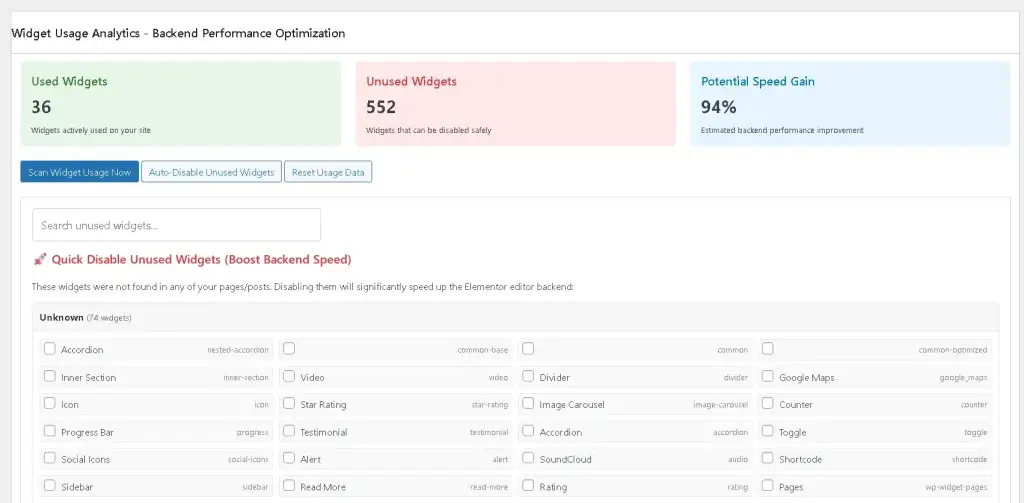
Tip: If your site has many pages, the scan may take longer. That’s normal.
4) Review “Detected Addons & Widgets”
This section helps you understand where the widget bloat is coming from:
- Addon packs installed (e.g., Happy Addons, Essential Addons, etc.)
- Total widgets per addon
- How many are actually used
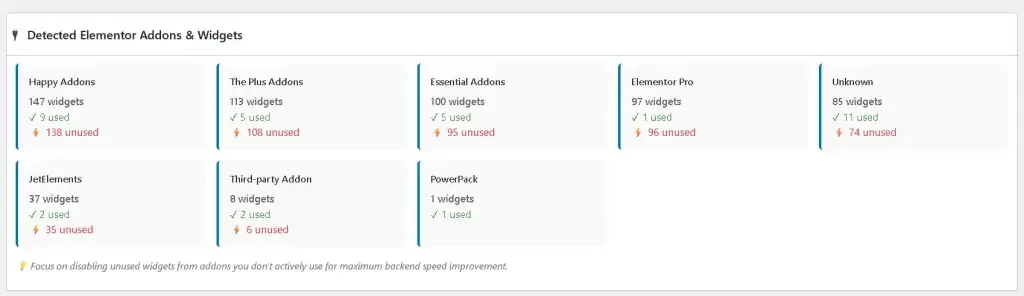
This makes it easy to decide:
- Which addon packs are worth keeping
- Which addon widgets can be disabled first
5) Disable unused widgets (safe method)
Recommended approach
The safest way to reduce Elementor bloat is to start with unused third-party addon widgets first (instead of core Elementor widgets). This lowers the risk of breaking layouts while still cutting down unnecessary CSS/JS. This is exactly what we’ll do in the Disable unused widgets safely step.
Steps:
- Open the Disable Widgets section
- Select widgets marked as unused (often highlighted/red)
- Disable in small batches (e.g., 20–50 at a time)
- Re-open Elementor on:
- Home page
- A heavy page (many sections)
- One or two key landing pages

Auto-Disable (if available)
If the plugin provides an Auto-disable unused widgets option:
- Use it only after you review the scan once
- Still test 2–3 key pages immediately after

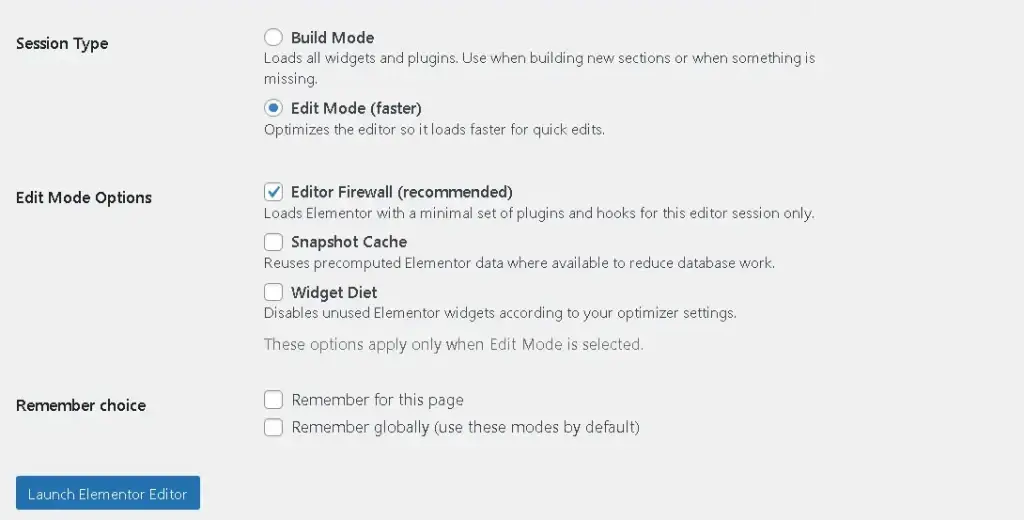
6) Use “Edit Mode” vs “Build Mode” (recommended workflow)
A practical workflow for teams:
Build Mode (Full Access)
Use when you are:
- Creating new layouts
- Trying new widgets
- Building new sections
Edit Mode (Optimized)
Use when you are:
- Doing quick text/image edits
- Editing stable pages
- Working on heavy pages that lag
This helps keep Elementor lighter during routine updates.
7) Configure editor performance options (stability + speed)
In Settings you may find options such as:
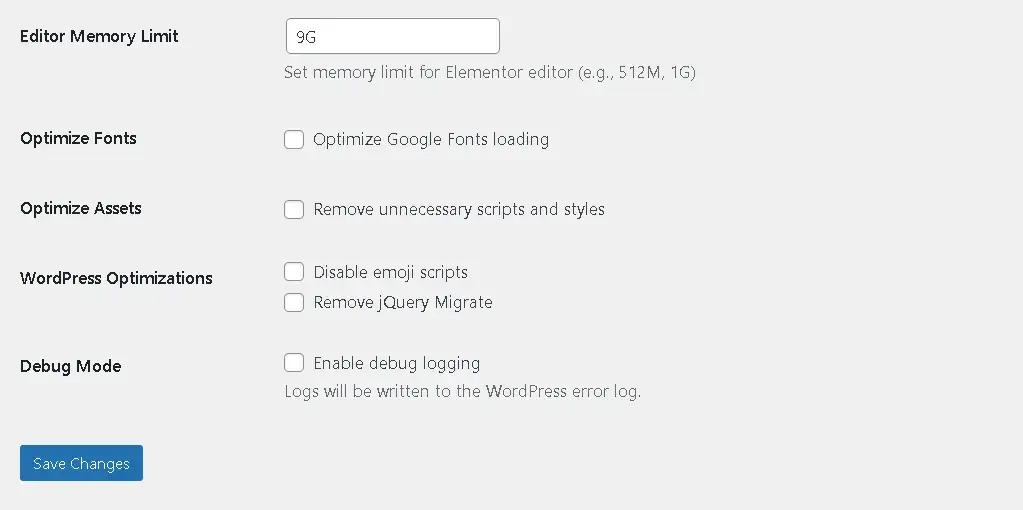
Editor Memory Limit (recommended for heavy pages)
If Elementor editor crashes, shows white screen, or fails on large pages:
- Increase Editor Memory Limit (example: 512MB / 1024MB depending on server)
Other editor optimization toggles
Depending on your setup, you may see optional toggles related to:
- editor resource loading
- fonts/assets optimizations
- general admin-side performance options
Enable only what you need and test quickly after changes.
8) Editor Firewall (advanced, optional)
If you use the Editor Firewall feature:
- The idea is to prevent unnecessary plugins from loading only during the Elementor editor session
- This can reduce overhead from heavy plugins that are not needed while editing
Recommended usage:
- Never block Elementor / Elementor Pro
- Start with non-essential plugins (analytics UI, dashboard widgets, etc.)
- Test editor launch after enabling firewall rules

9) Troubleshooting
Elementor editor still slow?
- Run scan again
- Disable a few more unused addon widgets
- Check if a specific addon pack contributes hundreds of widgets
- Try editor-only memory limit if the page is extremely heavy
A widget disappeared in the editor
- It may have been disabled but used somewhere
- Re-enable that widget and re-test
Scan results seem incomplete
- Ensure your important pages were included
- Run the scan again after clearing caches (if any)
10) Best Practices (for agencies & teams)
- Scan once when you inherit a site
- Disable unused addon widgets in small batches
- Use Edit Mode for routine edits
- Re-scan monthly (or after installing new addons)
Download / Contribute
GitHub: https://github.com/miracuves/MCX-Elementor-Editor-Optimizer
If you find an issue or want a new feature, please open a GitHub Issue or submit a PR.
Next Read : Fix heavy pages and crashes
Miracuves is an independent software development company. We are not affiliated with, connected to, sponsored by, or endorsed by any company or product named in this article.
Terms such as “X Clone” are used descriptively. It is how the software industry refers to building a platform with functionality comparable to a known service, and how clients search for it.
The entire design and codebase of our products is built by our own team. Our products contain no code, design, graphics, or content originating from any third-party website or applications.
All third-party names and marks referenced in this article are the property of their respective owners, referenced solely to identify the services discussed.